


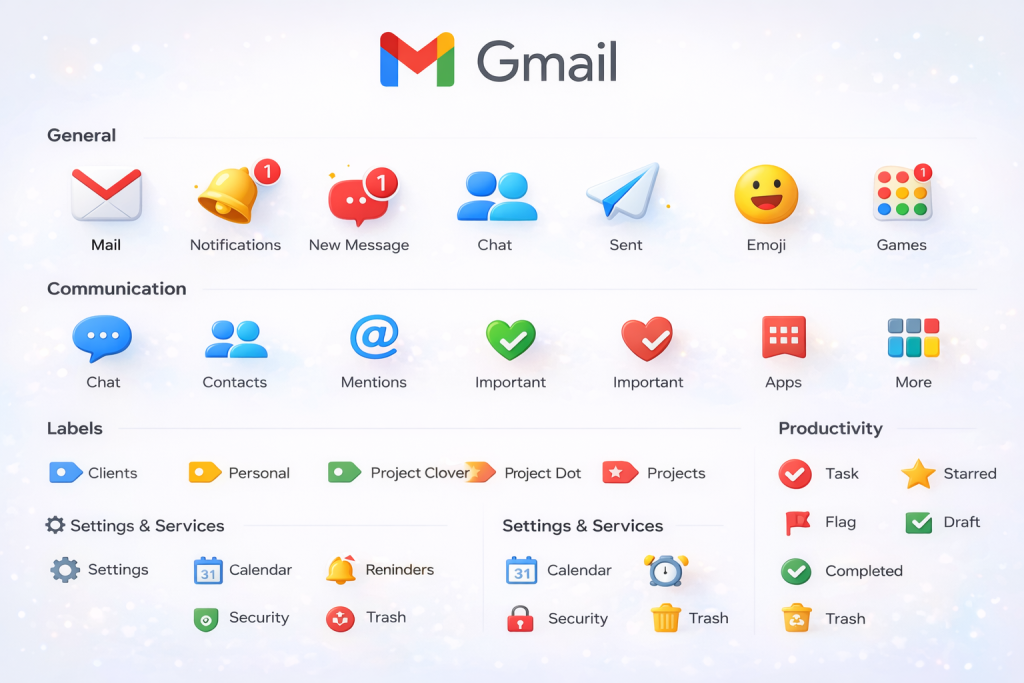
When you access your inbox or read an email, you encounter various Gmail icons and symbols. These small graphics indicate whether an email is unread, contains an attachment, is marked as important, may pose a risk, or falls into a particular category. This guide clarifies the meaning of each primary Gmail symbol in straightforward English, enabling you to handle your inbox with assurance.
Inbox Icons in the Email
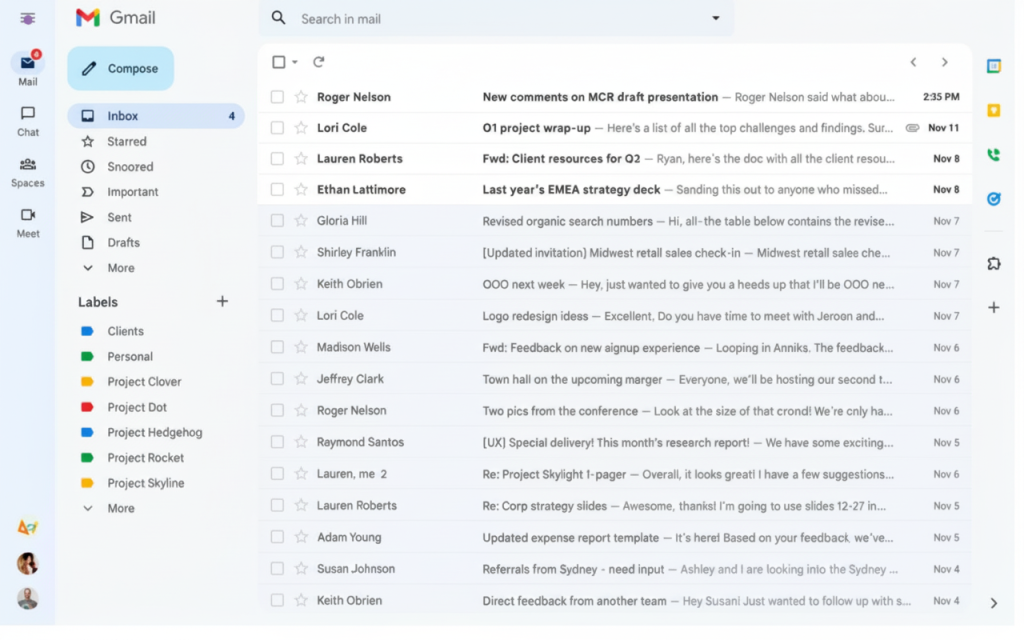
These Gmail symbols and icons appear on the main inbox screen next to each email.
Envelope / Bold Subject (Read vs Unread)
- Bold subject line: Email is unread and needs your attention.
- Normal (not bold): Email is already read.
- In some views, a closed or solid envelope can indicate unread, and an open or faded envelope shows read.
Star Icon
- Empty star: Click to mark the email as important or “to-do”.
- Filled star: Email is starred, meaning you want to find it quickly later.
- If you enable multiple stars in settings, stars can appear in different colors or shapes for your own system (for example, yellow for urgent, blue for reference).
Importance Marker (Yellow Arrow/Tag)
- Yellow marker or arrow: Gmail thinks the email is important based on your behavior (what you open, reply to, or ignore).
- You can click it to turn importance on or off, which helps Gmail learn your preferences over time.
Paperclip Icon (Attachment)
- Paperclip: The email contains one or more attachments such as photos, PDFs, or documents.
- This lets you spot emails with files without opening everything.
Draft Label
- “Draft” text near the subject: You started writing this email but have not sent it yet.
- Clicking it opens the draft so you can finish and send.
Replied / Forwarded Arrows
- Curved arrow: Shows you have replied to this email.
- Different arrow (often pointing right or angled): Shows you forwarded the email to someone else.
- These icons help you see which conversations you already handled.
Profile Picture / Letter Icon
- Round icon with a photo or initial: Represents the sender.
- Helps you visually identify frequent contacts or companies.
Icons on the Gmail Toolbar
Read also:Google Maps Icons and Symbols: What They Mean ?
These Gmail symbols and icons appear at the top when you select emails in the inbox or open a single message.
- ☑️ ⬇️ Select Checkbox and Down Arrow
Checkbox: Selects one or more emails for bulk actions like archive, delete, or label.
Arrow next to it: Lets you quickly choose “All,” “None,” “Read,” “Unread,” “Starred,” or “Unstarred.” - 🗃️ ⬇️ Archive Icon (Box with Down Arrow)
Moves selected emails out of your Inbox into All Mail, keeping them safely stored but out of the way.
Use the archive when you are done with an email but might need to search for it later. - 🗑️ Trash Bin Icon (Delete)
Sends selected emails to the Trash folder.
Emails in Trash are usually removed automatically after a set period (around 30 days in most accounts). - ✉️ Mark as Read/Unread Icon (Envelope)
Open envelope: Marks selected emails as read so they no longer appear bold.
Closed envelope: Marks selected emails as unread, helpful when you want to revisit them later. - 🛑 ❗ Report Spam (Stop Sign / Exclamation Mark)
Marks the email as spam and moves it to the Spam folder.
Helps Gmail learn and automatically filter similar unwanted or junk messages in the future. - ⚠️ 🎣 Report Phishing (Inside “More” Menu)
Used for emails that try to steal passwords, bank details, or other sensitive information.
Tell Gmail the message is dangerous, not just annoying, improving protection for you and other users. - 📁 ⬇️ Move To Icon (Folder with Arrow)
Moves selected emails into a specific label/folder and out of the main inbox view.
Ideal for organizing into folders like Work, Personal, Finance, or project-based labels. - 🏷️ Label As Icon (Tag)
Adds one or more labels to selected emails without necessarily removing them from the inbox.
Useful when a single email belongs to multiple categories, like “Work” and “Invoices.” - ⏰ Snooze Icon (Clock)
Temporarily hides an email until the date and time you choose.
When the snooze time arrives, the email comes back to the top of your inbox as if it were new. - ⋮ More Options (Three Vertical Dots)
Opens extra actions such as “Filter messages like these,” “Mute,” “Mark as not important,” “Block sender,” and more.
Great for advanced control over recurring emails and noisy conversations.
Icons Inside an Open Email
When you open an email, you see additional Gmail symbols and icons at the top and near the message content.
Reply, Reply All, Forward Icons
- Reply (curved arrow): Responds to the sender only.
- Reply all (double arrows): Respond to everyone in the conversation.
- Forward (arrow pointing in a different direction): Send the email to someone new.
Three-Dot Menu in the Email Header
- Opens a list with options like “Print,” “Block [sender],” “Report phishing,” “Show original,” and “Filter messages like these.”
- Helpful for managing repeated messages or problematic senders.
Print Icon (Printer)
- Opens a print-friendly version of the email.
Open in New Window Icon (Square with Arrow)
- Pops the email out into a separate window for easier multitasking.
Calendar / Add to Calendar Buttons
- Sometimes appear for event-related emails (like bookings or invites).
- Lets you quickly add details to your calendar.
Security and Warning Icons in Gmail
Security-related Gmail icons and symbols help you stay safe from scams and unsafe content.
Padlock Icons (Encryption)
- Secure lock: Email was sent over an encrypted connection; this is normal and preferred.
- Warning or open lock: Email may not be fully encrypted, meaning the connection between servers is less secure. Avoid sharing sensitive information in these messages.
Red Warning Banner / Danger Icon
- Appears at the top of suspicious emails, sometimes with a red warning icon.
- Indicates possible phishing, fake sender, or dangerous links.
- If you see this, do not click links or download attachments unless you are absolutely sure it is safe.
“External” Label (Work/School Accounts)
- Shows that the email came from outside your company or organization.
- Acts as a reminder to be extra careful with links and file attachments.
Blocked Content Icons (Show Images / Display Externally Hosted Content)
- Gmail sometimes hides images and shows a message or button to “Display images below.”
- This protects your privacy from hidden trackers until you choose to load the images.
Labels, Categories, and Status Icons
These Gmail symbols help organize and group your emails visually.
Label Icons (Tag Shapes with Names)
- Tag-like icons with text such as “Work,” “Family,” “Bills,” etc.
- You can create custom labels and assign colors to them.
Category Tabs (Primary, Social, Promotions, Updates, Forums)
- Primary: Personal and important emails.
- Social: Emails from social networks and communities.
- Promotions: Marketing, offers, and newsletters.
- Updates: Notifications like receipts, confirmations, and statements.
- Forums: Group emails and mailing lists.
Star and Multiple Star Icons
- Different colored stars or shapes (if enabled in settings) to mark different types of important emails, like “Urgent,” “Follow-up,” or “Ideas.”
Pinned / Important Icons (on some layouts)
- Pin or marker icons can “stick” an email near the top of the inbox or highlight importance depending on your view and settings.
Gmail Mobile App Icons
On mobile, Gmail symbols and icons are slightly simplified but keep the same meaning.
- 📨 Compose Button (Pencil or Plus in a Circle)
Tap the ✏️ or ➕ button to write a new email in the Gmail app. - 🧑🦰 Profile Picture Row Icons
Show the sender’s image or initial in a small circle next to each email, just like on desktop.
On mobile, long‑pressing this circle often also selects the email for bulk actions like archive or delete. - ⭐ 📎 🔶 Star, Attachment, and Importance Icons
Small ⭐ star, 📎 paperclip, or 🔶 importance marker icons appear within each email row to show priority, attachments, or important status, working the same as on desktop. - 👆➡️ Swipe Icons (Archive, Delete, etc.)
Swiping left or right on an email reveals actions such as archive, delete, mark as read/unread, move, or snooze, each shown with its own icon. - 📩🔔 Notification Icons and Badges
The Gmail app icon with a small 🔴 number badge on your phone’s home screen shows how many unread emails you have.
Meaning of Icon Colors and Styles
Gmail does not have as many color-coded icon categories as a map, but color and style still convey meaning.
- Yellow stars: Marked as important or saved.
- Colored label tags: Different colors for different categories (for example, red for urgent, green for finance, blue for personal).
- Red or bold warning icons: Indicate risk, danger, or security issues.
- Grey icons: Neutral actions (archive, move, mark as read) that are always available.
Using consistent colors in labels and stars makes your inbox easier to scan quickly.
Other Gmail Icons You May Notice
- 🔍 Search Icon (Magnifying Glass)
At the top of Gmail, used to search your entire mailbox using keywords, filters, and advanced operators. - ⚙️ Settings Gear Icon
Opens quick settings or the full settings panel, where you can change themes, inbox layout, and control which icons or features are visible. - 🔲 Google Apps Grid Icon (Nine Dots)
Lets you quickly switch to other Google services like Drive, Calendar, Docs, or Meet from the same Gmail screen. - ❓ Help Icon (Question Mark)
Open Gmail help articles, tips, and support options when you need guidance or run into a problem. - 💬 Meet / Chat Icons (Left Panel or Bottom on Mobile)
These icons connect you to Google Meet video calls and Google Chat conversations directly inside Gmail, so you can switch between email, chat, and meetings without opening new tabs.
Conclusion
Understanding Gmail symbols and icons turns a confusing inbox into a clear, visual dashboard where you instantly know which emails are urgent, safe, or ready to archive. Each icon—whether it is a star, padlock, warning sign, or label—gives you quick information so you do not have to open every message one by one.
When you start using these icons on purpose—starring key emails, applying colored labels, watching for security warnings, and using archives instead of delete—you gain control over your inbox instead of feeling overwhelmed by it. Over time, this simple visual system saves you time, reduces mistakes, and makes email management feel smooth and professional.So, what do you think? Let me know in the comments. And if you found this article helpful, share it with your friends.“One message can change someone’s entire day.”for more such Educational News subscribe newssy.in.